
Master Twitter Search Settings to Find Your Next Customers
Unlock the potential of Twitter search settings. This guide shows you how to use advanced search to find qualified leads and scale your outreach.

Most founders treat Twitter like a megaphone for brand updates. That's a huge missed opportunity. The real magic isn't in what you tweet—it's in what you search for. Learning to master your Twitter search settings is how you unlock a steady stream of qualified leads who are out there, right now, looking for what you sell.
Why Your Twitter Search Settings Are a Goldmine for Leads

Think of it like this: Twitter is a massive, real-time database of your ideal customers talking about their problems. Instead of just passively scrolling, you can actively hunt for opportunities by getting comfortable with Twitter's advanced search. This isn't just about plugging in a keyword; it's a completely different way of thinking about the platform.
This simple shift changes your outreach from cold to warm in an instant. You're no longer just another founder interrupting someone's day. You’re jumping into a conversation they already started, armed with the context you need to be genuinely helpful.
Find Prospects at the Perfect Moment
Twitter's search features are powerful enough to change how you think about lead generation. You can slice and dice tweets by date, location, and even mentions of specific accounts to zero in on your ideal prospect.
Considering that 37.9% of users are on X specifically to research products, it’s a no-brainer. You have a direct line to people who are actively looking for what you offer. For a deeper dive, check out the latest Twitter marketing statistics to see how they can inform your strategy.
This precision is exactly why Twitter is a must-have in any modern outreach toolkit. To see how it stacks up against other methods, it's worth exploring the landscape of the best B2B lead generation tools available today.
The goal is to stop broadcasting and start listening. When you find someone saying, "I wish there was a tool that did X," and you sell that exact tool, you've found the perfect lead.
Building a Scalable Outreach Engine
Getting good at these search settings is non-negotiable if you want to build a pipeline that scales. Once you dial in the high-intent keywords and phrases your customers use, you can build a repeatable system for finding and engaging new prospects every single day.
You can then take this a step further. Many founders have found success learning how to use Twitter for marketers, which goes beyond just finding leads and into building a brand presence that pulls them in.
This is also where automation can become a total game-changer. Once you've perfected your search queries, a tool like DMpro can run them for you 24/7. It finds new leads that fit your criteria and can even kick off personalized DMs on your behalf, taking a manual process and putting it on autopilot.
A Practical Guide to Twitter's Advanced Search
Forget the standard search bar. If you're serious about prospecting on X, the real magic happens in the Advanced Search feature. I know the interface looks a little intimidating, but let's walk through how to use it to find people who actually need what you're selling.
Think of Advanced Search as your command center for digging into hyper-specific conversations. Instead of plugging in a keyword and hoping for the best, you can layer on filters to zero in on the exact person and problem you're looking for. This is where you go from just browsing to actively generating leads.
Finding Your Ideal Customer's Pain Points
Let's try a real-world example. Say you've built a SaaS tool that helps marketers with content distribution. Your mission is to find marketers talking about that exact struggle right now.
Here's how you can set this up in Advanced Search:
- All of these words: This is for your core topic. Try phrases like
"content distribution"or"promote my blog". Putting them in quotes tells Twitter to find that exact phrase. - Any of these words: Now, let's look for signals of a problem. Add words like
struggling,help,advice,tool, orrecommendation. - Add a question filter: This is my favorite part. Tucked away under the "Filters" section is a simple checkbox labeled "Question?". Ticking this box is like turning on a bat signal for buying intent.
Just that simple combination will instantly show you a list of people asking for help with the very problem your SaaS is designed to fix. You’ve just built a list of warm leads in less than a minute.
The key here is to look past simple keywords and focus on the intent behind the tweet. Someone asking a direct question is actively looking for a solution, making them a much hotter lead.
Refining Your Search to Cut Through the Noise
Okay, now that we have some initial results, it's time to clean them up. A broad search can pull in a lot of irrelevant stuff, like spammy promo posts or old news.
- Dates: Always use the date filter to keep things current. I usually set the "From" date to the last 30 days. You want to engage with fresh problems, not ones from a year ago.
- Location: If your business serves a specific region, like the US or UK, this is essential for geo-targeted prospecting.
- Exclude unwanted content: Use the "Exclude" filters to get rid of retweets and links. This helps you focus on genuine, original conversations instead of people just sharing articles.
When you start layering these filters, you're no longer just "searching." You're prospecting with surgical precision and creating a repeatable system for uncovering qualified leads.
If you want a deeper dive into these techniques, you can learn more about how to search for tweets on Twitter. Getting comfortable with these settings is the first step to building a predictable sales pipeline straight from the platform.
Using Search Operators for Hyper-Targeted Leads
While Advanced Search is great, search operators are the real power tools for founders. These are little commands you type directly into the search bar to get incredibly specific results. Mastering a few key operators is what separates amateur prospecting from a professional, scalable lead-gen system.
Think of them as cheat codes for X search. Once you know them, you'll wonder how you ever prospected without them. This is how you find high-intent conversations that are completely invisible to your competitors.
This simple diagram shows the core idea: layering filters like keywords, location, and dates to zero in on exactly what you need.
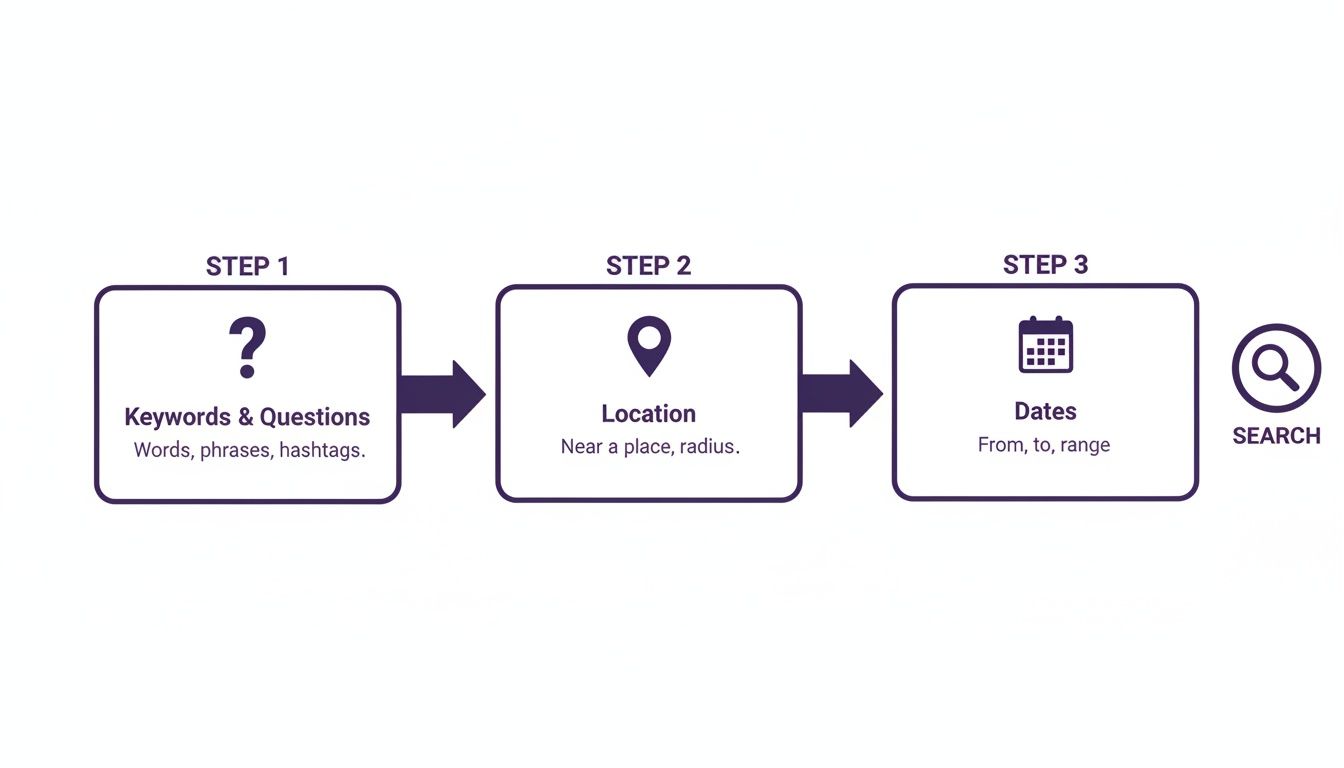
It’s all about moving from a broad topic to a hyper-specific, actionable list of potential leads.
Essential Twitter Search Operators for Lead Generation
To get granular, you need to know the specific commands. Here's a quick reference table with the operators I find most powerful for digging up prospects on X.
| Operator | What It Does | Example Use Case for Founders |
|---|---|---|
? | Finds tweets that are phrased as a question. | “best CRM for startups” ? to find people actively looking for recommendations. |
( ) | Groups multiple terms or operators together. | (from:VPofSales OR from:SalesDirector) to search for tweets from multiple job titles. |
“ ” | Searches for an exact phrase. | “looking for a graphic designer” to find direct requests for hire. |
OR | Searches for one term or another. | "content marketing" OR "SEO strategy" to broaden your topic search. |
- | Excludes a specific keyword or operator. | “hiring writer” -job -apply to filter out job board spam and find organic requests. |
from: | Finds tweets from a specific user account. | from:elonmusk if you want to see what a specific person is tweeting about. |
near: | Finds tweets sent from a specific geographical location. | "SaaS meetup" near:"San Francisco" to find local industry events and attendees. |
min_retweets: | Filters for tweets with a minimum number of retweets. | "marketing advice" min_retweets:10 to find popular, validated tips and influencers. |
min_faves: | Filters for tweets with a minimum number of likes. | "growth hack" min_faves:50 to see what content is resonating in your niche. |
min_replies: | Filters for tweets with a minimum number of replies. | "customer support tools" ? min_replies:5 to find active discussions around a pain point. |
These are the building blocks. The magic happens when you start stacking them together to create a single, powerful search query.
Building Your Power Search String
Alright, let's put it all together. The goal is to combine multiple operators into one search string that does the heavy lifting for you.
Imagine you're selling an SEO tool and want to find marketing managers in New York who are actively looking for recommendations. Here's a search string you could use:
"SEO tools" ? (from:marketing_manager OR from:headofmarketing) near:"New York" within:15mi min_replies:10 -filter:links
Let’s quickly break that down:
"SEO tools" ?finds tweets with that exact phrase that are also phrased as a question.(from:marketing_manager OR from:headofmarketing)narrows the search to people with those job titles in their handle.near:"New York" within:15migeo-targets the search to a specific city and radius.min_replies:10makes sure it's a real conversation, not a tweet into the void.-filter:linksexcludes tweets that are just sharing links to articles, focusing on genuine questions.
This one search finds a highly qualified prospect who is actively asking for a solution in your target market. It’s incredibly effective.
Pro Tip: The most powerful searches combine multiple operators. You're not just looking for one signal; you're looking for a cluster of signals that point directly to a high-quality lead.
Running these searches manually works, but it can eat up your time. This is exactly the kind of repetitive task that a tool like DMpro can automate, running your best search strings 24/7 to find and engage new leads while you focus on building.
Turning Search Results Into Real Conversations
Finding a list of potential customers is a good start, but it's only half the battle. The real magic happens when you turn those search results into actual conversations. As founders, we know that a generic, copy-paste pitch is the fastest way to get ignored. The key is to make that first touchpoint feel like you've actually been paying attention.
Instead of a cold, "Hey, check out my SaaS," try referencing the specific tweet that led you to them. A simple, "Saw you were looking for SEO tool recommendations..." instantly shows you've done your homework. It’s a direct, helpful response to a need they've already voiced.

This approach immediately builds trust and makes your outreach feel warm and relevant. If you're looking for ideas on crafting DMs that get replies, our guide on messaging on Twitter has some solid frameworks you can borrow.
Scaling Your Outreach Without Losing the Personal Touch
Okay, so manually running searches and sending personalized DMs works. But let's be real—it doesn't scale. As a founder, your time is your most valuable asset. Once you find a few search queries that consistently surface high-quality leads, the next step is to automate the heavy lifting.
This is where the right tools become a game-changer. You can set up a system that runs your best searches on autopilot, finds new people who fit your ideal customer profile, and kicks off the conversation for you.
The secret to scaling outreach isn't sending more generic messages; it's automating the discovery and personalization process so you can focus on the conversations that matter.
For instance, a platform like DMpro can keep an eye on your saved searches 24/7. When a new tweet matches your criteria—say, a marketing manager asking about content distribution tools—it can automatically send a personalized DM that directly references their tweet. It’s like having a virtual sales assistant who never sleeps.
What a Good First DM Looks Like
So, what should you actually say? Keep it short, helpful, and focused on them—not you. Here are a few things that consistently work well:
- Reference their tweet directly: "Hey, I saw you were asking about..."
- Offer value, not a sales pitch: "Happy to share a few tools that have worked for us if you're still looking."
- End with a simple, no-pressure question: "What's the biggest challenge you're facing with X right now?"
This same process works wonders for social listening, too. Beyond just finding leads, Twitter's search is invaluable for keeping tabs on your brand. It lets you effectively track brand mentions online and jump into real-time conversations about your company.
Ultimately, the goal is to build relationships first. By automating the tedious parts of prospecting, you free up your time to engage with warm leads and actually close some deals.
How to Optimize Your Searches and Measure Results
Getting your search query right on the first try almost never happens. The most successful founders I know are relentless about tweaking their approach based on what’s actually working. It's not about finding a magic search string; it’s about building a system where you’re constantly improving.
<iframe width="100%" style="aspect-ratio: 16 / 9;" src="https://www.youtube.com/embed/y89Dk8XQUvU" frameborder="0" allow="autoplay; encrypted-media" allowfullscreen></iframe>So, how do you know if your searches are any good? The real test is the quality of conversations they kickstart. Are people responding to your DMs? More importantly, are they the right people? If your searches bring in a ton of leads but none convert, you’re just spinning your wheels.
Analyzing Lead Quality
It all starts with tracking your queries and what they produce. A simple spreadsheet is perfect for this. Just list your search query in one column and track a few key metrics next to it.
Here’s what I suggest keeping an eye on for each search:
- Number of Leads Found: A raw count of potential prospects your search turned up.
- DMs Sent: How many of those leads did you actually reach out to?
- Reply Rate: This is your golden metric—the percentage of people who responded to your first DM.
- Positive Reply Rate: Of the people who replied, how many were genuinely interested?
This gives you a clear, data-driven picture of which searches are hitting the mark and which are just creating noise. If a search pulls in 100 leads but only gets a 1% reply rate, it’s a bad search. Ditch it or fix it.
A great search query isn't the one that finds the most people; it's the one that finds the right people. Focus on the reply rate, not just the volume of results.
Using Engagement Signals to Refine Your Searches
Engagement metrics are your feedback loop. Let's say a search for "looking for a new CRM" gives you hundreds of results, but the tweets have zero likes or replies. That’s a red flag signaling these are probably low-value conversations.
This is where getting precise with your filters is a game-changer. Looking at engagement analytics tied to your search shows that grouping posts by keywords helps reveal what drives replies and likes. This is a big deal, especially since 79% of users follow brands for updates. A search operator like min_replies:10 is a great way to find content that’s already sparking debates.
If your targeting feels off, go back to your operators. Is your keyword too broad? Try adding negative keywords to weed out irrelevant job postings. Is engagement too low? Add min_faves:5 to your query to surface tweets that are already getting some attention.
This cycle of refining your searches based on real-world feedback is what turns this from a manual chore into a predictable lead-gen engine. For a deeper dive, you might find our guide on setting up a Twitter analytics account helpful.
Over time, you’ll build a library of proven, high-performing search queries. This becomes the foundation you can then plug into an automation tool like DMpro, which can run your best searches around the clock and scale your outreach without sacrificing quality.
Common Questions About Twitter Search Settings
Even when you've got a great strategy, a few practical questions always pop up. As founders, we need fast, no-nonsense answers to keep things moving. Let's dig into some of the most common snags you might hit when using Twitter search settings to find new leads.
Can I Save My Advanced Searches on Twitter?
Yes, and you absolutely should. Once you've crafted a search query that's delivering quality results, just click the three-dot menu next to the search bar and select 'Save search.' It's a huge time-saver.
Doing this turns a complicated search into a single click. It's the foundation of a consistent, scalable outreach process.
How Do I Find People Talking About My Competitors?
This is one of my go-to moves for finding incredibly warm leads. Head over to Advanced Search and pop your competitors' names into the "Any of these words" field (e.g., "CompetitorA", "CompetitorB").
But here's the real trick: add a question mark ? to the main search box. Now you're seeing people asking for help or opinions on their service. You can also toss in words with negative sentiment like frustrated, issue, or broken to zero in on unhappy customers. This gives you the perfect opening to slide in and offer a solution.
Finding a competitor's dissatisfied customer is one of the warmest leads you can get. You're not just selling a product; you're solving an immediate and painful problem.
What's the Best Way to Avoid Spammy Results?
The secret here is getting good with your exclusion filters. In Advanced Search, make the "None of these words" field your best friend. Fill it with common spam triggers like giveaway, contest, or free download to clean up your results instantly.
Another quick win is to add -filter:retweets directly into your search bar. This simple operator cuts out the noise from shared content, letting you focus only on original conversations. Continuously adding negative keywords is how you keep your lead list high-quality over time.
How Often Should I Check My Saved Searches for New Leads?
If you’re doing this by hand, checking your top 3-5 saved searches daily is a good rhythm. Conversations on X move fast, and jumping in at the right moment can be the difference between a new customer and a missed opportunity.
The reality, though, is that this daily check-in becomes a massive time-suck. This is exactly why automation is a founder's secret weapon. A tool like DMpro can monitor these searches for you 24/7, engaging potential leads the second they post so you never miss a beat.
If you’re tired of manually sending DMs every day, try DMpro.ai — it automates outreach and replies while you sleep. Visit https://dmpro.ai to get started.
Ready to Automate Your Twitter Outreach?
Start sending personalized DMs at scale and grow your business on autopilot.
Get Started Free