
Using Drafts on Twitter for Founder Outreach
Stop losing your best ideas. Learn how to use drafts on Twitter to scale your outreach and lead generation workflows. Actionable tips for founders inside.
Using drafts on X is more than just saving a tweet for later. For founders, it's a strategic move. Think of it as your private workshop for capturing ideas and perfecting your outreach messages before they go live. This ensures everything you send is sharp, intentional, and gets replies.
Why X Drafts Are a Founder's Best Friend
As a founder, your time is your most valuable asset. You're pulled between product, team, and sales. Marketing can't be an afterthought, and that's where mastering a simple feature like drafts can completely change your outreach game.
Your drafts folder is a no-pressure zone. It's where you can get your thoughts down, craft compelling DMs, and plan out entire tweet threads. You can write when inspiration hits—whether at 2 AM or in the five minutes before a meeting—and have a stockpile of quality content ready to go.
Building a Smarter Outreach Workflow
Shooting from the hip with outreach DMs feels fast, but it rarely gets results. Using drafts forces you to be more methodical, which is critical when a single interaction can make or break a potential deal for your SaaS.
A well-organized drafts folder becomes your command center for lead generation. It lets you:
- Prep personalized templates: Create polished versions of your cold DMs, follow-ups, and answers to common questions.
- Dodge embarrassing mistakes: A quick review is your best defense against typos that can instantly kill your credibility.
- Keep your brand voice consistent: Guarantee every message, even a quick DM, sounds like it came from you.
This system is how you start to scale your outreach. Once you have a library of messages that work, you can bring in tools like DMpro to handle the sending. To see how this works, check out how DMpro can help startup founders scale their distribution.
Honestly, turning this overlooked feature into a core part of your process is a small tweak with a massive impact on your efficiency.
Finding Your Drafts on Any Device
Ever had that moment of panic? You craft the perfect tweet on your phone, only to find it's vanished when you open your laptop. It used to be a massive headache for anyone trying to build a consistent content workflow.
Thankfully, those days are over. X finally made it possible to sync drafts across all your devices, which was a huge win for founders and creators who are constantly switching between their phone and computer.
This simple change means you can start a thought on one device and polish it on another without missing a beat. It makes managing your content ideas so much easier. You can get the full scoop on this update from this breakdown on Social Media Today.
This infographic captures the flow from idea to published post.
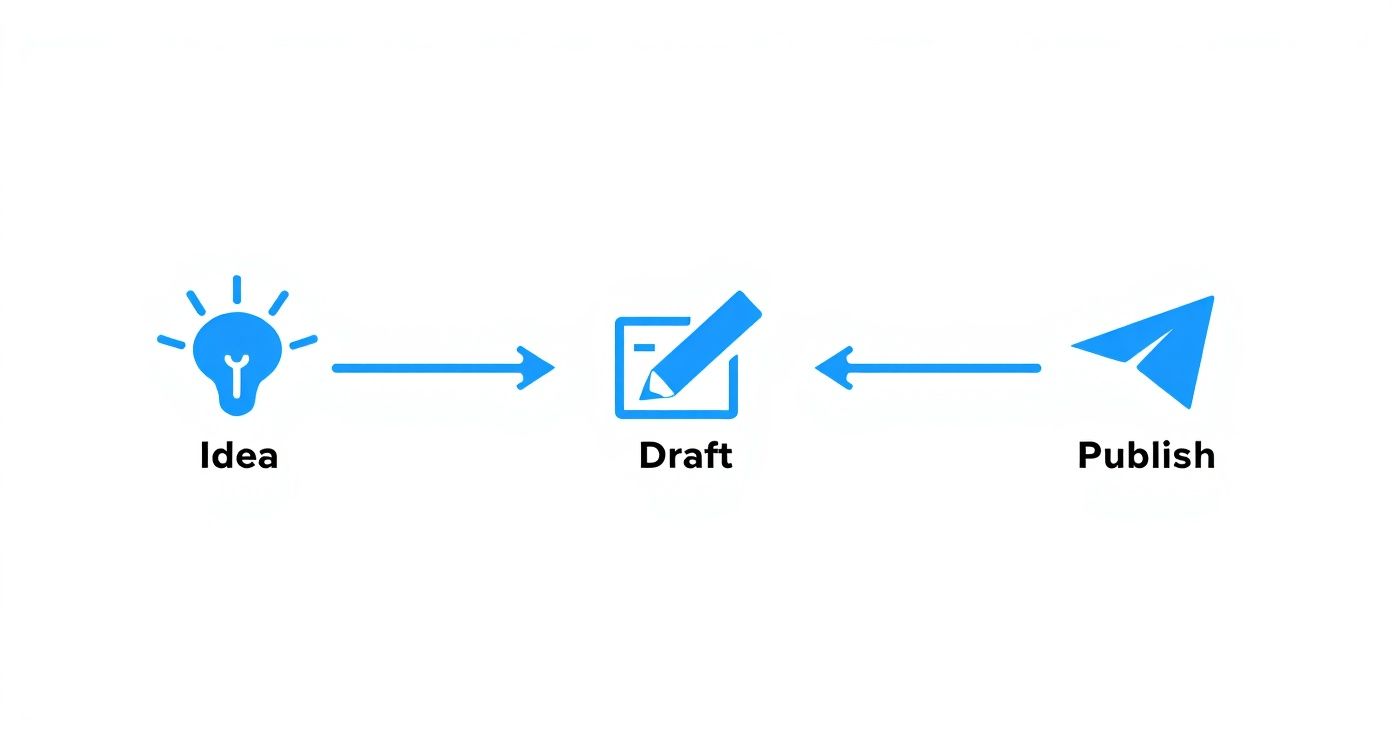
As you can see, the draft stage is that crucial middle step. It’s your chance to refine your message before it goes live.
Accessing Drafts on Mobile
Finding your saved tweets on the X app is easy once you know where to look.
Here's how:
- Open the X app and tap the big blue plus (+) icon to start a new post.
- In the compose screen, look for the "Drafts" link in the top-right corner.
- Tap it, and you'll see a list of every post you've saved. From here, you can pick one to edit or send.
This is my go-to for capturing a quick thought when I'm away from my desk.
Accessing Drafts on Desktop
The process on the web version is just as straightforward. I prefer using the desktop for heavier writing and editing sessions.
Founder's Tip: I often batch-write a week's worth of tweets on my laptop and save them as drafts. Then, I can easily pull them up and post from my phone during the week. That cross-device sync is a total game-changer for my workflow.
To pull up your drafts on the website:
- Click the "Post" button in the main navigation menu on the left.
- When the compose window appears, click the "Unsent Posts" icon (it looks like a little calendar page).
- A new window will open. Click the "Drafts" tab to see all your saved content.
Accessing Twitter Drafts Mobile vs Desktop
The location for drafts is slightly different depending on your device. Here’s a quick reference.
| Action | On Mobile (iOS/Android) | On Desktop (Web) |
|---|---|---|
| Start | Tap the blue plus (+) icon | Click the "Post" button |
| Location | Look for the "Drafts" link in the top-right of the compose screen | Click the "Unsent Posts" icon (calendar) in the compose pop-up |
| Access | Tap "Drafts" to see your list | Select the "Drafts" tab in the "Unsent Posts" window |
No matter where you are, your brilliant ideas are always just a couple of clicks away.
Turn Your Drafts into an Outreach Powerhouse
This is where your drafts folder transforms from a holding pen into a serious tool for founder-led sales. Manually typing every cold DM is a massive time-drain. The secret to scaling is turning your drafts into a library of effective, personalized templates.
Let's be clear: this isn't about spamming people. It’s about creating a system that lets you scale your efforts while still sounding human. By preparing a few versions of your opening message and follow-ups, you’re building a playbook for your outreach campaigns.
Build Your Template Library
Think about the conversations you have most often. What messages do you find yourself typing again and again? It probably comes down to a few core scenarios.
- The "New Follower" Welcome: A simple, friendly message to start a conversation—no sales pitch.
- The "Tweet Engagement" Follow-Up: A template for reaching out after someone likes or replies to your industry-specific tweets.
- The "Cold Outreach" Opener: Your go-to for contacting potential leads who look like a great fit for your SaaS.
- The "Gentle Nudge" Follow-Up: A few templates to gently remind prospects who haven't gotten back to you.
Having these drafts on Twitter locked and loaded will save you a ton of time. You can pull up the right template, pop in a quick, personal detail from their profile, and hit send.
This strategy is especially powerful when you consider who's on X. Out of 600 million monthly active users, a small group of about 10% of users creates 92% of all tweets. These are the people you want to connect with.
Here's a real-world template you could save: "Hey [Name], saw you liked my tweet about SaaS scaling. Loved your point on [mention their comment or a recent tweet]. Curious to know what your biggest challenge is with distribution right now?"
This system is a fantastic starting point. Once you're ready to ramp things up, you can move beyond sending DMs by hand and start looking into full-scale Twitter automation to handle the heavy lifting.
A solid, tested set of drafts is the perfect foundation for automation. It ensures that even when a tool is sending for you, your outreach still sounds authentic and gets replies.
Dealing With Common Draft Headaches
Nothing throws a wrench in your workflow like your tech failing you. You've just written the perfect outreach message, saved it as a draft, and when you go back... it's gone. It’s incredibly frustrating, but most of these issues have a simple fix.
Before you pull your hair out, check the basics. Is your X app updated? Do you have a solid internet connection? A quick check can save you a lot of trouble.
Why Did My Drafts Vanish?
This is the most common and annoying problem. You save a draft, and it's nowhere to be found. This often happens after an app update or if you've recently logged out and back in.
Here are a few things that usually work:
- Clear the App Cache: A cluttered cache can cause strange behavior. Clearing it can force the app to refresh its data from the server, which often brings your missing drafts back.
- Double-Check for Updates: Make sure you're running the latest version of the X app. Developers are always releasing patches to fix draft syncing bugs.
- Try a Quick Re-Login: If all else fails, logging out and back in can trigger a full resync. Use this as a last resort, as it can sometimes be what caused the issue in the first place.
My Drafts Aren’t Syncing Between My Phone and Computer
The other big headache is saving a draft on your phone and not seeing it on your desktop. This defeats the whole purpose and can mess up your outreach process.
The most reliable fix I've found is to give the app a nudge. Open any existing draft, add a single space, and save it again. This small action usually forces a manual sync and makes all your drafts pop up on your other devices.
When you're juggling dozens of outreach templates, these little glitches add up. If you find yourself spending more time fixing sync errors than sending messages, you've likely outgrown the native drafts folder.
This is often the point where moving to a dedicated outreach tool like DMpro makes sense. It gives you a stable, centralized place for all your messages that doesn't rely on X's sometimes-flaky syncing.
Organizing Your Drafts for Maximum Efficiency
As you use drafts for outreach, that folder can get messy—fast. Before you know it, it’s just as chaotic as an overflowing inbox, hiding your best material and slowing you down. Keeping things organized is the secret to a smooth, effective workflow.
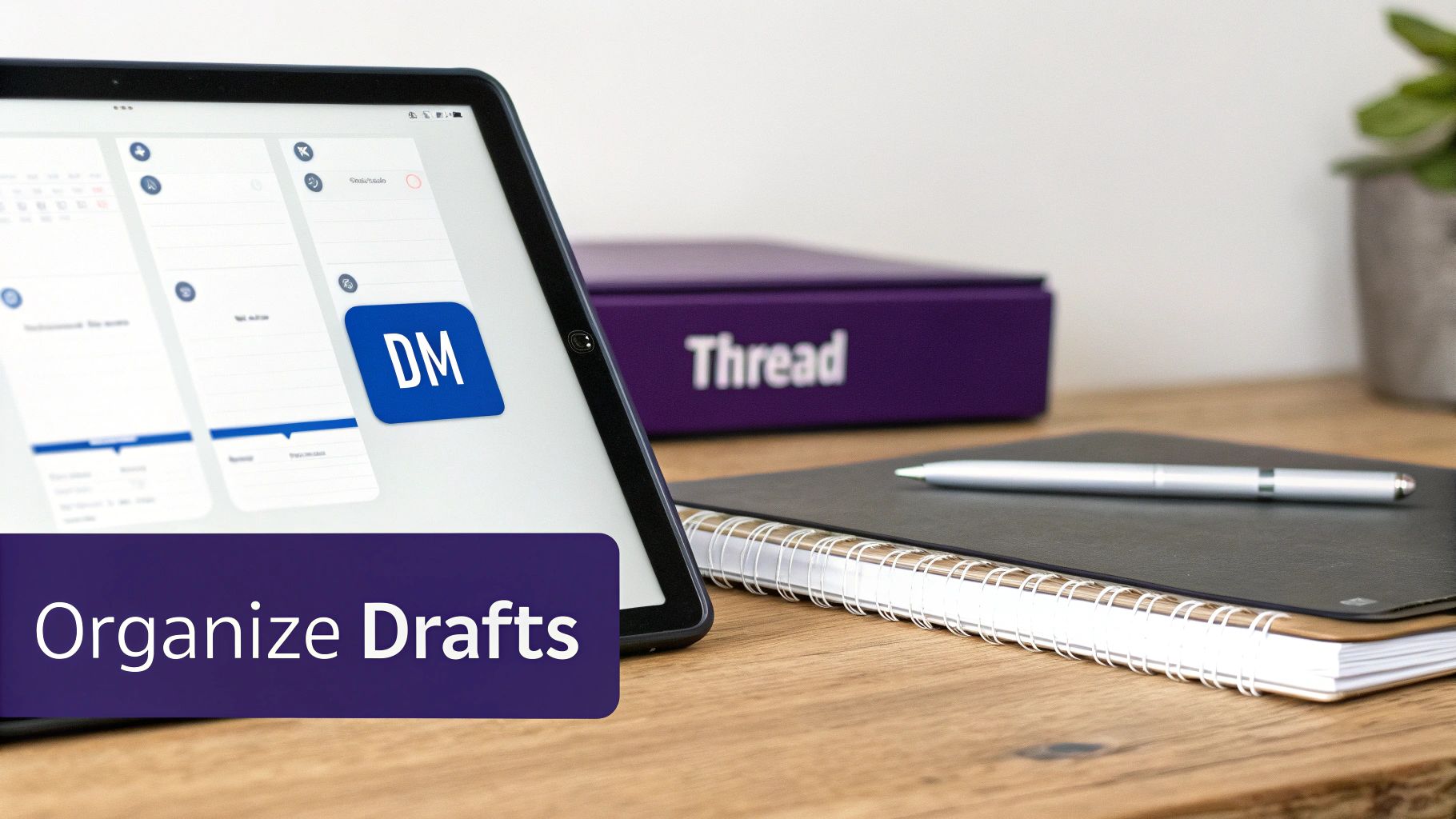
The easiest way to bring order to the chaos is with a simple naming convention. Just adding a clear prefix to the start of each draft makes a world of difference.
Think about organizing them by purpose:
- [DM - Intro] for those first cold outreach messages.
- [DM - FollowUp] for the gentle nudges you send a few days later.
- [THREAD] for those multi-part tweets you're still piecing together.
- [REPLY] for the common responses to questions you get all the time.
It’s a tiny habit, but it makes finding the exact message you need in seconds completely effortless.
Building Sustainable Habits
Any organizational system is only as good as your commitment to it. I set aside 15 minutes every couple of weeks for a "drafts clean-up." I'll archive published threads and get rid of one-off drafts that are no longer relevant. This keeps my workspace focused on my most effective, ready-to-go templates.
With over 500 million tweets flying around every day, having your best content ready is a massive advantage. The platform is incredibly noisy. If you're curious about the sheer scale, check out these X statistics on Hypefury.
The goal isn't just to be tidy; it's to build a system that supports speed and consistency. When you can instantly find the perfect outreach message, you're more likely to send it.
For founders scaling outreach, this is essential. Once you have your core templates polished, you can use them as a launchpad for more advanced tools. To take it to the next level, you can explore AI personalization features that adapt your proven messages for each lead, making every DM feel unique.
Common Questions About X (Twitter) Drafts
Got questions about how X drafts work? Let's clear up a few common sticking points. Getting the hang of these details is key to building an outreach system you can rely on.
Is There a Limit to How Many Drafts You Can Save on X?
Officially, X doesn't state a hard limit. You can save hundreds without any issue. The real bottleneck isn't technical—it's practical.
Once you start stockpiling dozens of DM templates, finding the right one in the native drafts folder becomes a massive headache. This is where the built-in feature breaks down for scaling outreach. It’s the tipping point where a dedicated tool becomes a necessity.
Do X Drafts Expire or Get Deleted Automatically?
Nope, your drafts on X are safe. They don't expire and will stick around until you post or delete them. This is fantastic for long-term planning, letting you create a library of evergreen content that's always on standby.
Founder’s Tip: Even though they don't expire, I recommend a quick cleanup every month. Clearing out old drafts keeps your workspace tidy and your focus on messaging that’s working right now.
Can I Schedule a Draft to Be Posted Later?
You can't schedule a post directly from the drafts folder. It’s a two-step dance. Think of your drafts as a storage locker for ideas, not a launchpad.
To schedule a draft, you have to open it first. Then, you can use X's own scheduling tool to pick the date and time. It’s a separate action you take after you’ve finalized the content, which prevents you from accidentally scheduling a half-finished thought.
Take Your Outreach to the Next Level and Win Back Your Time
<iframe width="100%" style="aspect-ratio: 16 / 9;" src="https://www.youtube.com/embed/8Ct9MwNYiqU" frameborder="0" allow="autoplay; encrypted-media" allowfullscreen></iframe>Having a well-organized set of draft templates is a fantastic start. It’s a smart way to streamline your outreach and ensure your best drafts on Twitter are always a click away, saving you from typing the same thing over and over.
But let's be honest—the real grind is the manual labor of sending messages, tracking replies, and remembering to follow up. That's a huge time-drain when you're trying to grow a business.
This is where you can start working smarter. Instead of getting bogged down in your DMs every day, you can automate that entire process. To see how this works, check out our guide on how to send automated Twitter DMs and build a system that practically runs itself.
If you’re tired of manually sending DMs every day, try DMpro.ai — it automates outreach and replies while you sleep.
Ready to Automate Your Twitter Outreach?
Start sending personalized DMs at scale and grow your business on autopilot.
Get Started Free